
Signing APK
1 - You can use Android Studio to create your key (.jks)
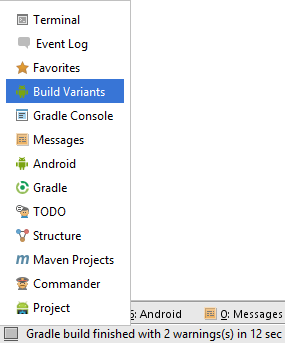
2 - The first step in the process of generating a signed application APK file involves changing the build variant for the project from debug to release. This is achieved using the Build Variants tool window which can be accessed from the tool window quick access menu (located in the bottom left hand corner of the Android Studio main window as shown in Figure bellow
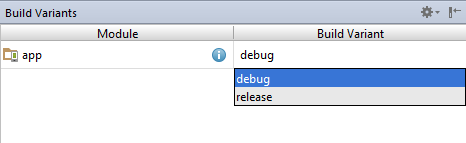
3 - Once the Build Variants tool window is displayed, change the Build Variant settings for all the modules listed from debug to release:
4 - Check up your build.gradle
android {
    compileSdkVersion 25
    buildToolsVersion "25.0.2"
    defaultConfig {
        applicationId "br.com.evologica.ecartao" // It has to be the same as in Play Store
        minSdkVersion 16
        targetSdkVersion 25
        versionCode 1
        versionName "1.0"
        testInstrumentationRunner "android.support.test.runner.AndroidJUnitRunner"
    }
    // Your key information
    signingConfigs {
        release {
            storeFile file('/Users/hborjaille/Projects/Evologica/CartaoVirtual/cli/mobile/android/eCartao.jks')
            storePassword "jj58Pd02"
            keyAlias "eCartaoPublishKey"
            keyPassword "jj58Pd02"
        }
    }
    buildTypes {
        release {
            minifyEnabled false
            proguardFiles getDefaultProguardFile('proguard-android.txt'), 'proguard-rules.pro'
        }
    }
}
5 - Run your app on Android Studio, then a app-release-unsigned.apk will be created in /your-directory/app/build/output/apk/app-release-unsigned.apk
6 - Follow the instructions bellow to sign your apk
6.1 - Align the unsigned APK using zipalign:
~/Library/Android/sdk/build-tools/25.0.2/zipalign -v -p 4 app-release-unsigned.apk app-release-unsigned-aligned.apk
zipalign ensures that all uncompressed data starts with a particular byte alignment relative to the start of the file, which may reduce the amount of RAM consumed by an app.
6.2 - Sign your APK with your private key using apksigner:
~/Library/Android/sdk/build-tools/25.0.2/apksigner sign --ks-key-alias eCartaoPublishKey --ks ../../../../eCartao.jks --out app-release.apk app-release-unsigned-aligned.apk
This example outputs the signed APK at app-release.apk after signing it with a private key and certificate that are stored in a single KeyStore file: eCartao.jks.
The apksigner tool supports other signing options, including signing an APK file using separate private key and certificate files, and signing an APK using multiple signers. For more details, see the apksigner reference.
6.3 - Verify that your APK is signed:
~/Library/Android/sdk/build-tools/25.0.2/apksigner verify app-release.apk
No Comments